Converting an avatar
1. Import the avatar
Import the avatar's .unitypackage into your Basis project. Its VRChat components will show as
missing scripts in the inspector, which is expected: the VRChat SDK is not installed, and the
data those components hold is read from the prefab file instead.
Drag the avatar into a scene, then add any clothing and accessories you want on it.
2. Open the window
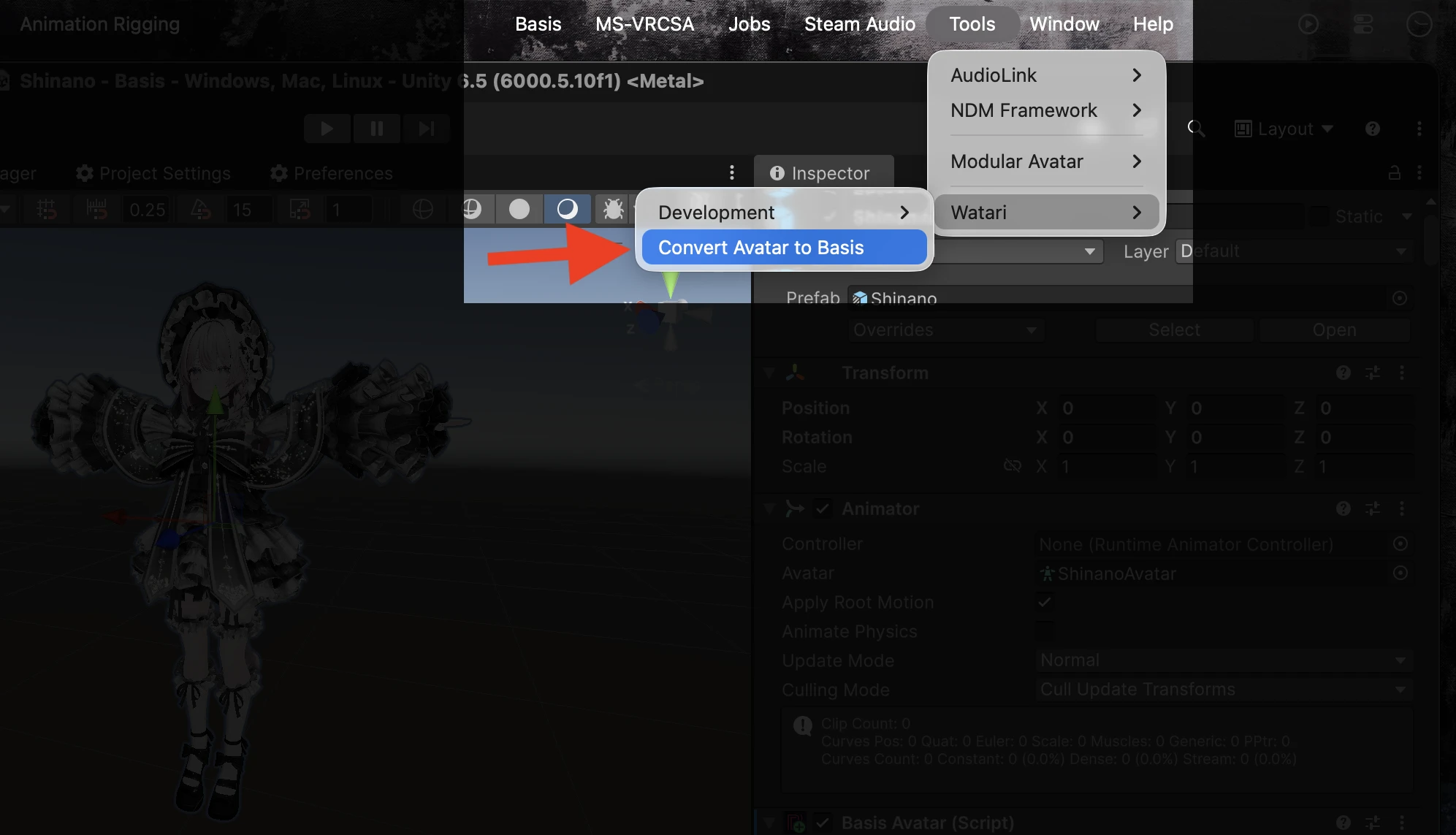
Tools > Watari > Convert Avatar to Basis, or right-click the avatar in the hierarchy and pick the same entry.
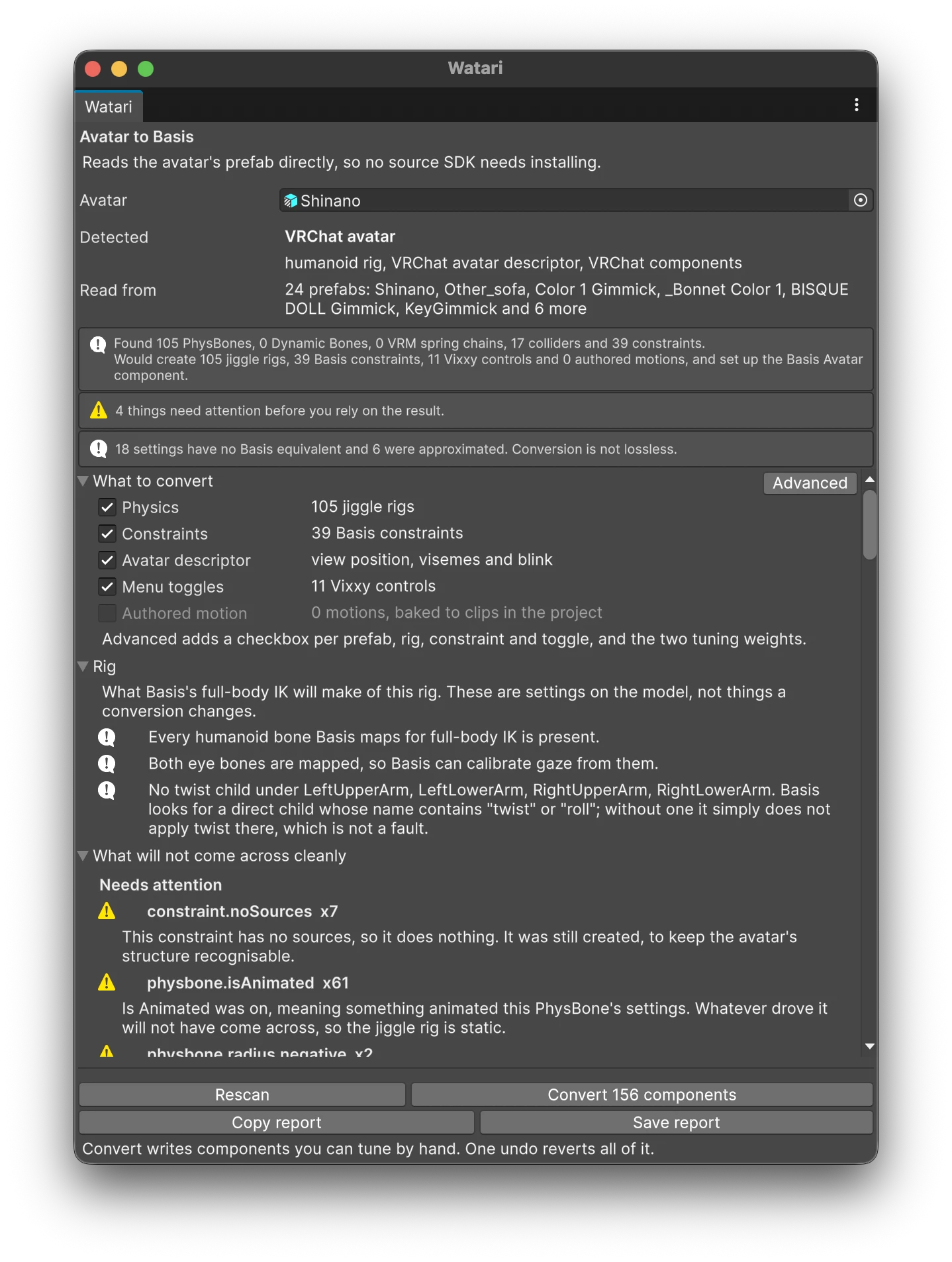
The window scans the avatar as soon as one is selected. It reports what it detected, how many components it found, and what a conversion would produce. Nothing has been written yet.
3. Read what it found
The summary lists what was found and what will be written. Diagnostics groups the rest by severity:
- Warnings: converts, but not the way it worked before.
- Dropped: no Basis equivalent.
- Approximated: fitted onto a Basis setting that does not mean quite the same thing.
- Mapped: carried across as it was.
Reading the report covers what these mean in practice.
4. Choose what to convert
By default everything is converted. Under Targets you can switch off whole kinds: physics, constraints, the avatar descriptor, menu toggles, authored motion. Turning on Advanced adds colliders, and a checkbox for each individual prefab, rig, constraint, toggle and motion.
See Conversion options.
5. Convert
The Convert button names how many components it will write. Press it and they go onto the avatar in the scene, under a single undo step, and the window reports what it wrote.
If the avatar already carries components from a previous conversion on the same bones, you are asked before they are replaced. Anything elsewhere on the avatar is left alone.
If the avatar has animation that plays on its own, a clip is baked into the project beside the animation it came from. That is a file rather than a component, so it is the one thing an undo leaves behind. See Authored motion.
6. Check the result
Press Test In Editor on the BasisAvatar component. Jiggle physics and authored motion both
run only once an avatar is calibrated, so plain Play mode will not show anything moving.
Compare the hair, tail and skirt with how they behaved before. Stiffness and drag are fits rather than conversions and can be adjusted under Advanced: see Physics.
Adding clothing later
Convert new clothing on its own: select the clothing object rather than the avatar, and convert that. A conversion only replaces components on the objects it is about to write to, so everything already converted stays as it is, including any tuning you have done by hand.